Service & Web UI
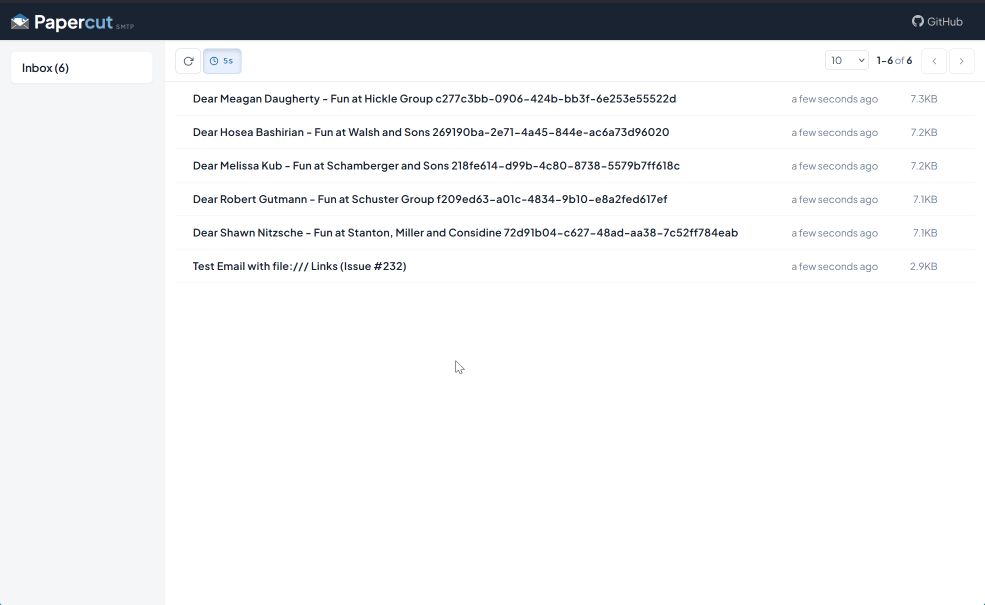
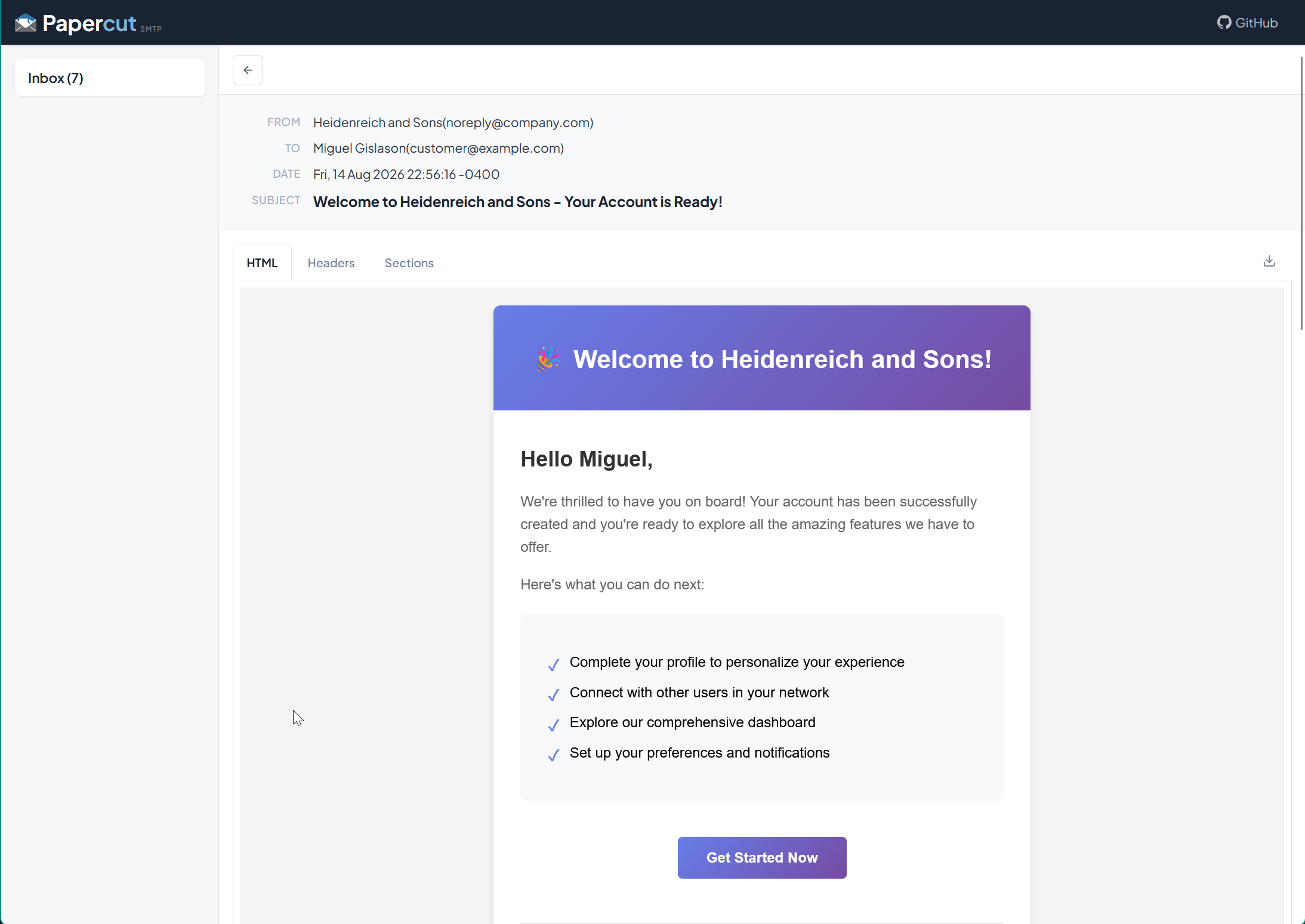
The Papercut SMTP Service is an optional background component that receives email even when the desktop app isn't running — as a Windows Service or a Docker container — and includes a browser-based UI for viewing messages.
The service is optional
For normal desktop use, the Papercut app alone is a complete SMTP server and viewer. Install the service for always-on setups, shared dev servers, or headless environments.
Web UI
The service serves a web interface at http://localhost:8080 by default:
Install as a Windows Service
- Download
Papercut.Smtp.Service.*.zip(x64, x86, or ARM64) from the latest release - Extract it anywhere
- Run the install script as administrator:
install-papercut-service.bat(double-click), or.\install-papercut-service.ps1(PowerShell)
The service installs with automatic startup and starts immediately. To uninstall, run uninstall-papercut-service.bat / .ps1.
You can also run it as a plain console app — just execute Papercut.Service.exe.
Configuration
The service needs no manual configuration: when the desktop app and service run on the same machine, they synchronize settings automatically — change the SMTP port in the desktop Options and the service follows. Rules sync the same way.
For manual configuration, the service uses layered files (highest priority first):
| File | Purpose |
|---|---|
Papercut.Service.Settings.json |
User settings — UI changes are saved here (SMTP IP, Port, etc.) |
rules.json |
Persisted rules |
appsettings.Production.json |
Docker/production overrides (non-privileged ports) |
appsettings.json |
Baseline defaults (SMTP port 25, IP Any) |
Restart the service after manual edits.
Common changes
SMTP port — Papercut.Service.Settings.json:
Web UI binding — appsettings.json Urls setting:
Use http://0.0.0.0:8080 to listen on all interfaces — but read the warning below.
Path prefix (reverse proxy / ingress) — serve the web UI under e.g. /webmail:
Network exposure
When binding to 0.0.0.0, +, *, or a LAN IP, the web UI is reachable from other machines — and Papercut has no built-in authentication. Use firewall rules or a reverse proxy with auth in front of it.
Rate limiting — reject mail once a quota is hit, so you can test how your application
handles a mail server that is throttling it (appsettings.json):
RateLimit is <count>/<window>, where the window is a number followed by s, m, or h —
for example 500/1h, 5/10m, or 100/30s. Use * (the default) for no limit.
Once the limit is reached, Papercut rejects at MAIL FROM until the window resets:
RateLimitReplyCode accepts any 4xx or 5xx reply code — 421, 451 (the default), 452 and 550
are the usual choices. A 4xx code tells the sending client the failure is temporary and worth
retrying; a 5xx code tells it the message was permanently refused.
The count is global to the server rather than per-sender or per-IP, and the window is fixed: it starts when the first message arrives and resets in full once it expires.
Environment variable form (Docker): SmtpServer__RateLimit and SmtpServer__RateLimitReplyCode.
API
The web UI is backed by a small HTTP API (/api/messages, etc.) you can script against — handy for asserting "an email was sent" in end-to-end tests. Explore the endpoints via your browser's dev tools on the web UI.
For AI agents and coding assistants, the service can also expose these operations over the Model Context Protocol — see MCP Server.