Desktop App
The Papercut SMTP desktop app is both the SMTP server and the viewer — when it's running, you're catching email.
Message Views
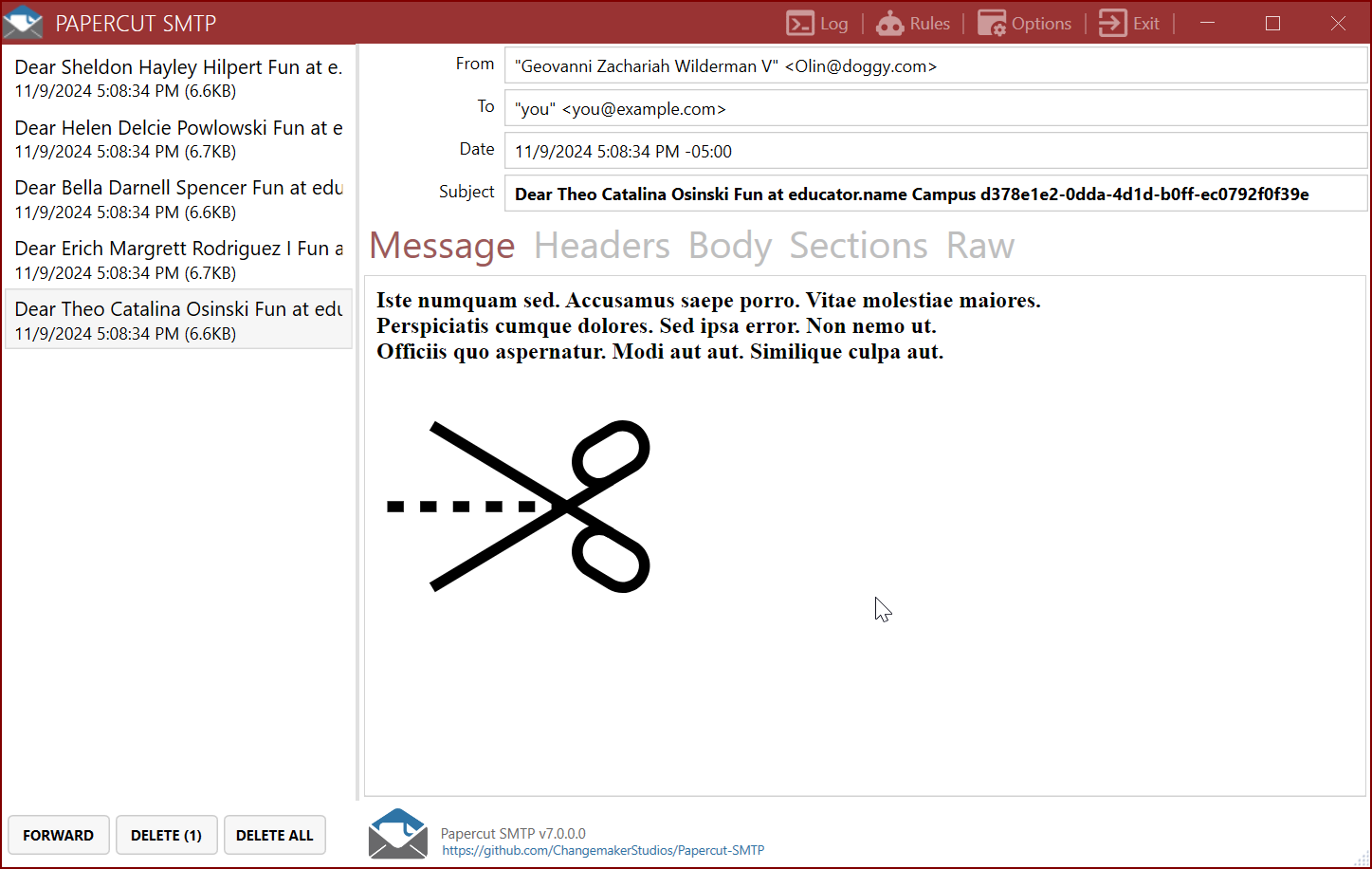
Select a message to inspect every layer of it:
- Message — the rendered HTML, exactly as an email client would show it (embedded images included)
- Headers — the full header list
- Body — the plain-text body
- Sections — every MIME part, viewable and downloadable individually (attachments included)
- Raw — the raw encoded message source
Right-click works everywhere you'd expect: copy selected text, copy or open links in the HTML view, and Copy / Select All in the Headers, Body, and Raw views.
Notifications & the Tray
New mail triggers a toast notification. Papercut can minimize to the system tray and sit silently until something arrives:
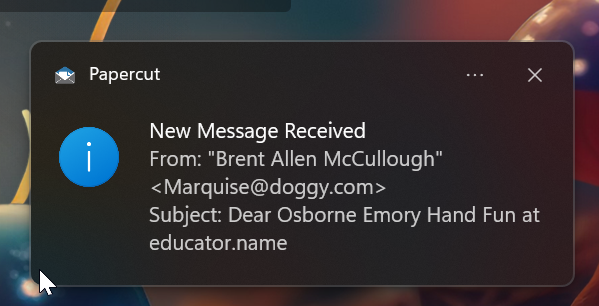
Configure minimize-to-tray, minimize-on-close, and run-on-startup behavior in Options.
Managing Messages
- Messages are stored as standard
.emlfiles — right-click → open the containing folder to grab them directly - Delete removes the selected message(s); Delete All clears everything older than the moment you confirm
- Forward a received message on to a real SMTP server (with optional authentication) when you need to get a captured email out
Rules
Papercut can act on messages automatically as they arrive:
- Forward — pass received messages along to another SMTP server (supports authentication)
- Relay — conditionally relay matching messages
- Retention — periodically prune old messages
Configure rules from the main window; if the background service is running, rule and settings changes sync to it automatically.
Options
The gear icon opens Options:
| Setting | Default | Notes |
|---|---|---|
| SMTP IP | 127.0.0.1 |
Any accepts mail from other machines |
| SMTP Port | 25 |
Any free port works |
| Message folder | per-user app data | Where .eml files are written |
| Theme | System | Light / Dark / follow Windows, with accent color options |
| Startup | — | Start with Windows, start minimized |
Logs
The Logs view shows the live application log — SMTP server start/stop, connections, received messages, and any errors. It's the first place to look when something seems off (see Troubleshooting).